Own a Tesla Fleet
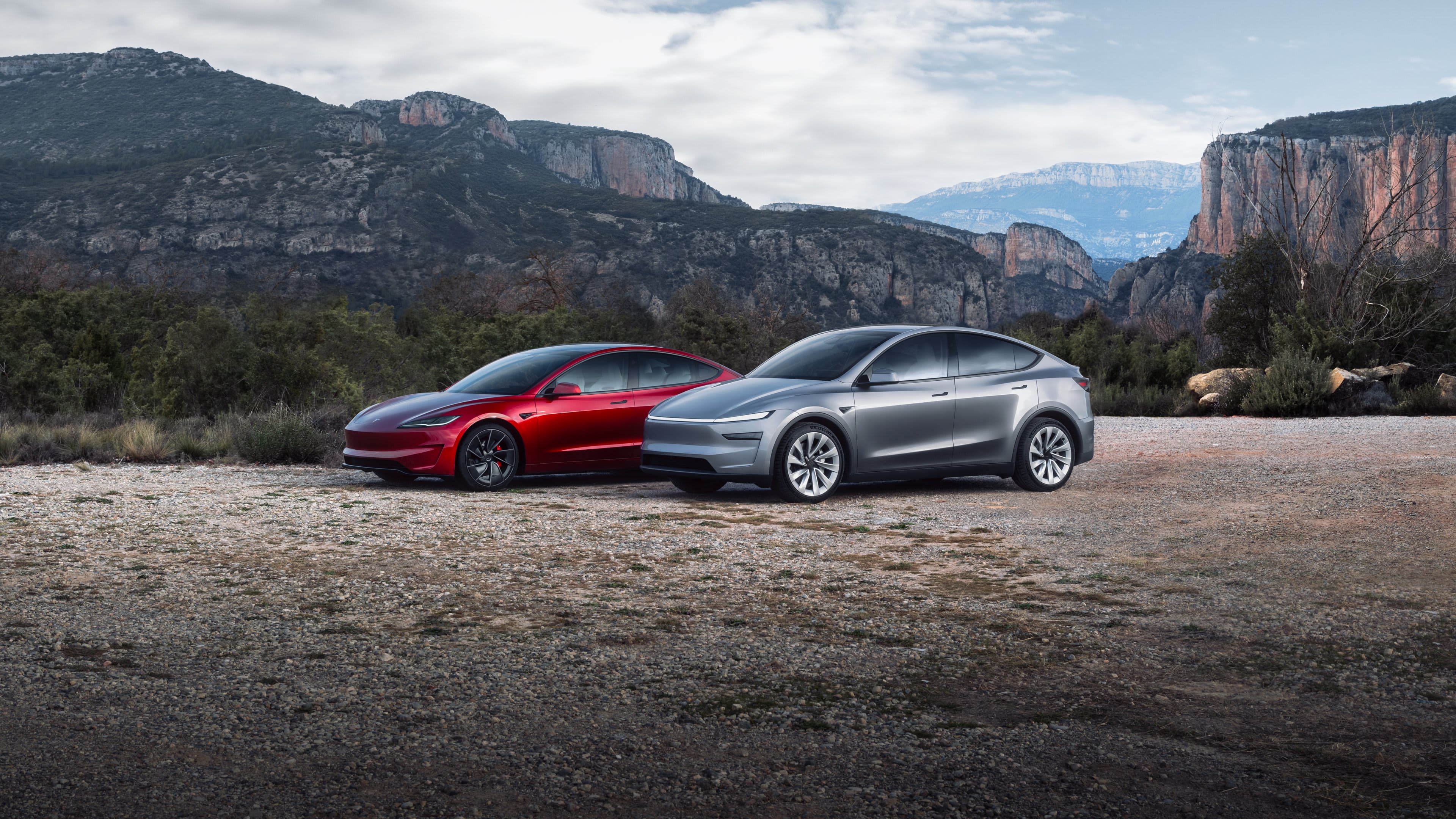
Grow your business and build an all-electric fleet with Tesla fleet.
Start by exploring the Tesla vehicle lineup to see which models suit your business needs. Currently, Model 3 and Model Y vehicles are available for your Tesla fleet.
If you have questions about Tesla vehicles, creating an order, setting up a Tesla Business account or more, contact the Tesla Fleet team.
Once your Tesla Business account is set up, sign in and create a custom or inventory order. Users who are Admins or Order/Fulfillment Managers can create orders for your company.
To create an order, follow these steps:
- Sign in to your Tesla Business account.
- Select ‘Orders’ > ‘Vehicles’ > ’Create Order.’
- Select the order type of custom or inventory along with the model.
- Select your trim and options.
- Review your order.
- For custom orders, review your estimated delivery before placing your order.
- For inventory orders, provide the point of contact who will be taking delivery of your company vehicle.
- After creating your order, a message containing your reservation number will appear.
Note: Orders are created with the understanding that you are financially prepared for immediate delivery. Tesla reserves the right to request additional information on orders placed if irregular activity is identified, such as excessive ordering or cancellations.
After placing your order, complete your pre-delivery tasks in Tesla for Business.
- Complete your tasks under ‘Assignments’ which include:
- Purchase order number
- Driver information
- Payment responsibility information
- Complete your tasks under ‘Delivery Details’ which include:
- Delivery address
- Delivery contact
- Email your completed purchase order form to the Tesla Fleet team.
Note: Orders cannot be matched to a VIN or be invoiced if you have not completed the pre-delivery tasks and submitted your purchase order. Not completing these actions may result in cancellation of your order.
You can pay cash for your vehicles or arrange for third-party financing. Currently, financing with a Tesla financier is not available for fleet. To lease a Tesla vehicle, our Fleet Account Managers can provide referrals to several leasing options.
All pre-delivery tasks, including submitting a purchase order, must be completed within two business days after placing an order. Pre-delivery tasks can be found in your Tesla Business account.
Once a VIN is matched to your order, Tesla will send you an invoice and/or delivery document request.
Note: Orders cannot be matched to a VIN if you have not completed the pre-delivery tasks and submitted your purchase order. Not completing these actions may result in cancellation of your order.
Proof of payment is required 48 hours prior to taking delivery of your vehicle. The following can be provided as a proof of payment:
- Banking receipt
- Remittance or settlement advice
The estimated delivery date shown when creating an order is an estimate and not a guaranteed delivery date. The actual delivery date will depend on several factors such as vehicle configuration, manufacturing availability, transportation, delivery location and delivery method.
There are two delivery methods of Tesla fleet vehicles. Tesla will determine the delivery method based on your provided delivery address and unit volume to address. The delivery methods include the following:
- Pickup from a Delivery Centre
- Carrier Direct
If you are taking delivery by pickup from a Delivery Centre, you will need to take delivery within seven calendar days from when the vehicles are ready for pickup.
Carrier Direct deliveries are handled by a Tesla-approved third-party carrier.
Note: Delays in taking delivery may result in the unmatching of the VIN from the order and/or cancellation of your order.
Manage your Tesla fleet all in one place. Your Tesla Business account is where you can track your new vehicle orders, manage driver access, delegate your fleet management, pay for Supercharging, manage monthly subscriptions and more.
Own your fleet and delegate management operations to another organisation with Vehicle Management. To invite other organisations to manage vehicles from your fleet, follow these steps:
- Select ‘Account’ > ‘Vehicle Management.’
- Select ‘Add Company’ in the top-right corner.
- If an organisation has an existing Tesla for Business account, enter their ‘Public Account ID’ to complete account pairing. An existing Tesla for Business company can view their ‘Public Account ID’ by navigating to ‘Account’ > ‘Vehicle Management’ and selecting the privacy icon at the top of the page.
- If an organisation does not have a Tesla for Business account, select ‘Invite a New Company’ and enter their contact information. Business account creation instructions will be sent to the organisation via the email address provided. Pairing will be completed once their account is created and they accept your invitation.
- A confirmation message will display once you’ve successfully invited another organisation to manage vehicles from your fleet. Invited, pending and accepted organisations will be displayed in your Tesla for Business account under ‘Vehicle Management.’
After you’ve successfully added a Vehicle Management Company, navigate to ‘Vehicles’ > ‘Fleet’ > select one or multiple VINs to Assign Vehicle Management. Assigned Vehicle Management companies can:
- View vehicle information
- Manage driver assignments
- Assign themselves or a driver as payer for charging, service and subscriptions
- Schedule and manage service if a company or a driver is assigned as payer for service
- Add subscriptions if a company or a driver is assigned as payer for subscriptions
You can assign or remove your company’s employees as drivers in your Tesla Business account. With the Tesla app, assigned drivers can remotely access their Tesla vehicle, set up phone key, make payments for charging and subscriptions.
If you are an assigned driver for one or more of your company’s fleet of Tesla vehicles, get started by setting up the Tesla app. Find additional resources on how to set up your phone key, use navigation and more.
You can also assign your company’s employees as the payer for charging sessions and subscriptions.
Note: Tesla is not responsible for maintaining or updating your assigned drivers. Users who are Admins or Fleet Managers can directly manage these settings for your company.
Tesla vehicles are designed with the goal of eliminating the need for service. With remote diagnostics and over-the-air software updates, you can use your Tesla Business account to schedule, approve cost estimates, access recall information and view service history if your vehicle requires attention.
Where You Park
Charge any time by plugging in. Wall Connector is the most convenient charging solution, offering the fastest charging speed. Purchase Wall Connectors in the Tesla Shop, and additional pedestals to mount your Wall Connector for stand-alone charging.
On the Road
With over 80,000 global Superchargers located near amenities such as restaurants, shops, toilets and Wi-Fi hot spots, you can charge your Tesla fleet vehicles by simply plugging in at any Superchargers.
Managing Charging Sessions
As a customer of Tesla fleet, you can choose to pay for charging sessions through your Tesla Business account or have your assigned drivers pay for charging sessions.