Energy Tariffs

One of the benefits of a Tesla solar system is reduced energy consumption from the grid, resulting in lower energy bills. Having an accurate rate plan helps your Tesla solar system to maximise savings. Rate plans, also known as energy tariffs, generally determine how much you pay for your electricity from your energy supplier. The Tesla app allows you to add your energy tariff for more accurate value calculation estimates and system optimisation.
How It Works
The Tesla app uses your set energy tariff to accurately calculate your energy consumption.
Time-Based Control uses your tariff to optimise how your Powerwall charges and discharges. This helps maximise the value of energy generation and lower the cost of energy consumption, often referred to as load shifting.
The Energy Value cards estimate the amount of energy generated by your solar system. These values are calculated based on the time of day and amount of solar generation, energy consumption and energy exported to the grid, in addition to value generated by load shifting.
Setting Up a Custom Tariff
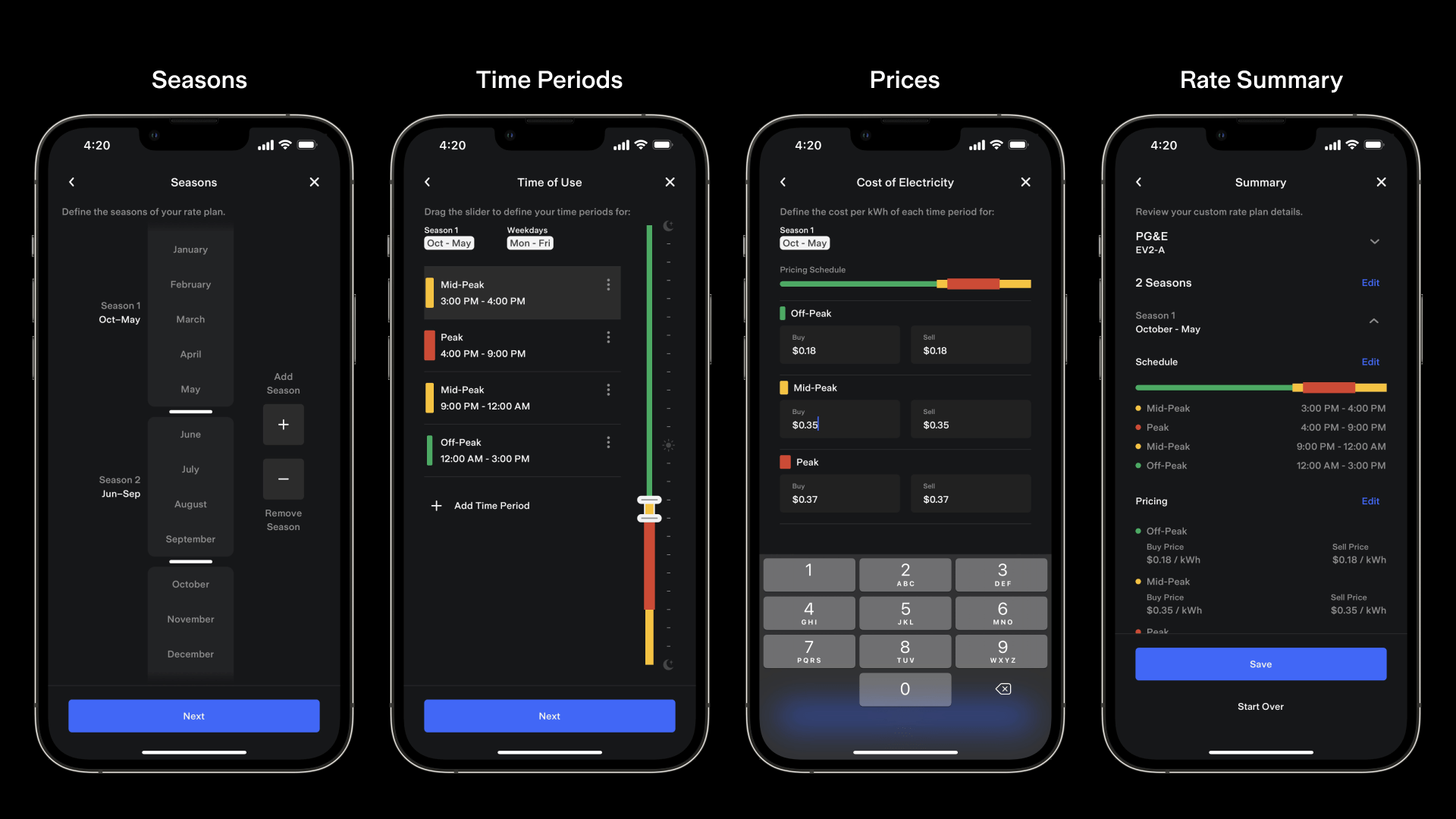
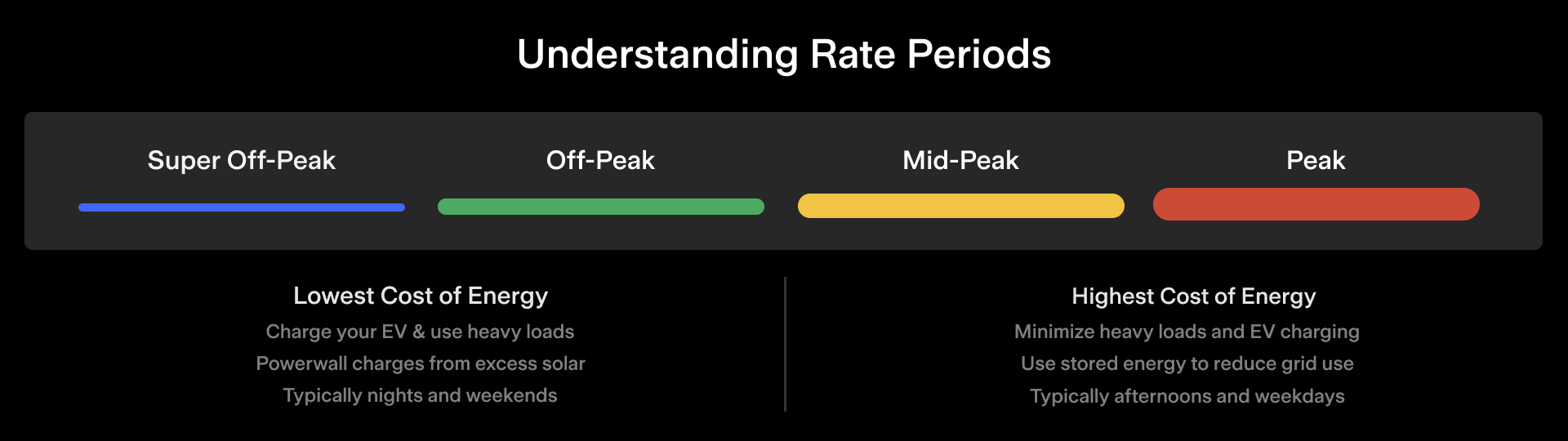
You can build a custom tariff in the Tesla app. Elements of a custom tariff are outlined in the table below:
To get started, open the Tesla app and follow these steps:
- From the home screen, open the ‘Settings’ menu.
- Tap ‘Utility Rate Plan.’
- Tap ‘Start,’ or if your system already has a tariff, tap ‘Start Over.’
- Tap ‘More Options.’
- Tap ‘Custom Rate Plan.’
- Enter your ‘Energy Supplier’ name and ‘Rate Plan’ name.
- Select either ‘Time of Use’ or ‘Seasons’ depending on your rate pricing structure.
- If your tariff uses ‘Time of Use,’ tap ‘rate periods’ and drag the slider to edit time periods. Tap ‘Add Time Period’ to add a new period. Multiple peak periods are supported. Repeat this step for weekends.
- If your tariff uses ‘Seasons,’ set your season using the handles. Use ‘+’ or ‘–‘ to remove Seasons. Up to three seasons are currently supported. Enter the ‘rate pricing’ for this season. You can set a unique ‘buy’ and ‘sell’ price for each time period, depending on your tariff. The sell price corresponds to the export FiT or the Smart Export Guarantee (SEG) from your retailer.
- Repeat steps eight and nine to account for all time periods and seasons.
- Review the summary screen, and then tap ‘Save.’
Feature Availability
Adding a tariff, viewing Energy Value cards and using Time-Based Control mode for tariffs requires Tesla app version 4.2.0 or later. Additionally, some tariffs have elements that require Powerwall Firmware 21.39.